Forecast Revision / Rolling Forecast
The Forecast Revision / Rolling Forecast Writeback template creates a new forecast budget in Sage Intacct from a workbook, with actual results for completed periods and an existing budget as the baseline for the remaining periods. You can use the template for quarterly reforecasts, monthly rolling forecasts, and other forecast revisions during the year.
Each revision is a new budget with a new Target Forecast Budget ID, and the existing baseline budget stays unchanged. It uses the NECWRITEBACK formula, generated with the Writeback Wizard, to send the completed forecast to Sage Intacct.
Click Initialize before you edit forecasts. Initialize creates a workbook copy with static data, so a refresh keeps your changes.
Write a forecast revision back to Sage Intacct
- Enter a new Target Forecast Budget ID and select the Starting Reporting Period and Baseline Budget ID in the forecast header.
- Select the actuals Book, the Actuals Through Period, and any forecast filters.
- Click Initialize.
- Adjust the forecast periods with the forecast helper columns, or enter the amounts directly.
- Review the forecast, then click Push to Intacct.
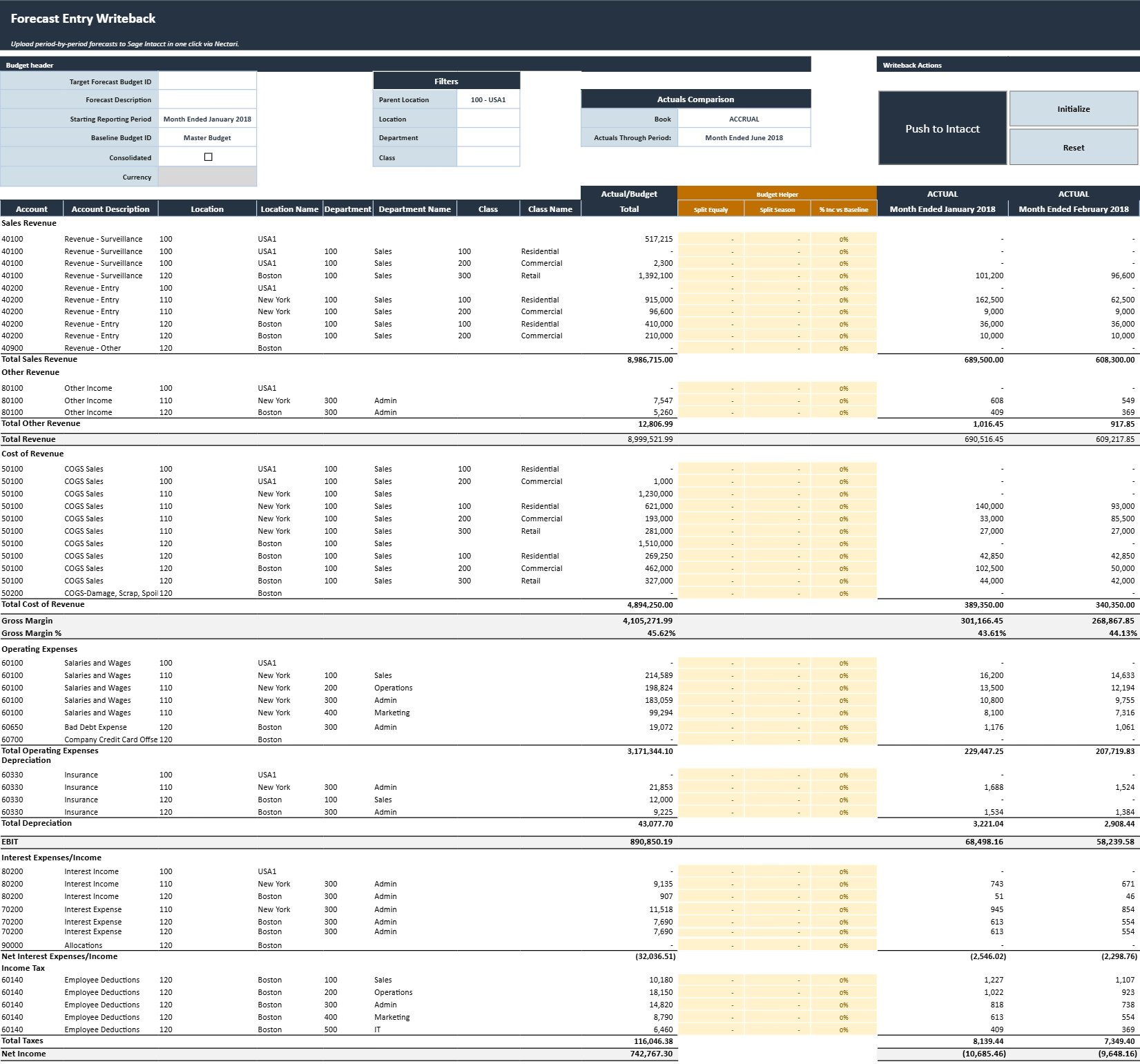
Forecast header fields
The forecast header defines the new forecast budget, the 12-period window, and the baseline budget for the future periods.
| Header field | What it does |
|---|---|
| Target Forecast Budget ID | Unique identifier for the new forecast budget to create in Sage Intacct. Use a new ID for each forecast revision. |
| Forecast Description | Description used to identify the forecast version or revision. |
| Starting Reporting Period | First fiscal period in the 12-period forecast window. |
| Baseline Budget ID | Existing budget used as the starting point for periods after the actuals cutoff. |
| Consolidated | Indicates whether the forecast budget is consolidated. |
| Currency | Currency for the forecast budget. Required when creating a consolidated budget. |
Forecast filters
The filters set which accounts and dimension combinations load into the forecast grid. You can combine them to narrow the forecast to a specific part of the organization.
- Parent Location limits the forecast to the locations under the selected parent location.
- Location restricts the forecast to one location.
- Department narrows the forecast to one department.
- Class filters the forecast to one class.
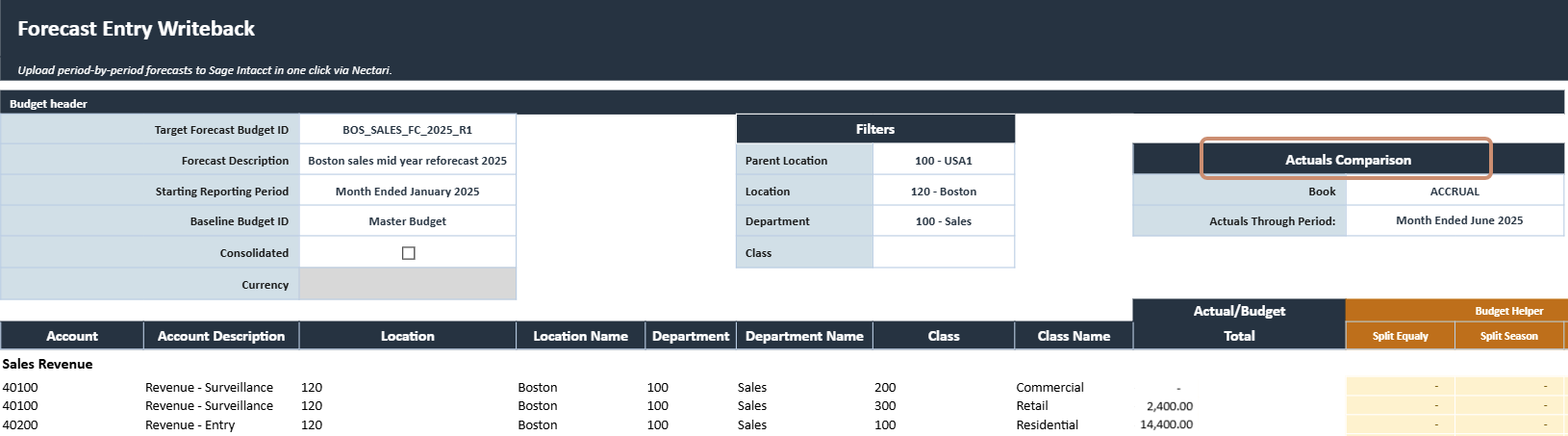
Actuals comparison fields
These fields set which actual results the forecast includes, so the workbook combines actual results up to the cutoff period with forecast amounts for the remaining periods.
- Book sets the Sage Intacct book that the actual results come from.
- Actuals Through Period sets the last fiscal period treated as actual. This period is included in the actuals, and the periods after it start from the baseline budget.
Writeback actions
| Writeback action | What it does |
|---|---|
| Push to Intacct | Creates the new forecast budget in Sage Intacct using the selected Target Forecast Budget ID. Periods through the actuals cutoff are written as zero-valued budget entries, while subsequent periods receive the forecast amounts. |
| Initialize | Creates a separate workbook copy with (Initialized) added to the workbook name. Data extractions are disabled and the extracted data is made static so it remains unchanged while the forecast is being prepared. |
| Reset | Clears the current changes and restores the workbook to its last saved state. Any unsaved forecast entries or edits are removed. |
Forecast grid
The forecast grid lists the selected accounts and dimensions, the actual results up to the cutoff period, the forecast periods after the cutoff, and the helper columns. Leave the actual periods unchanged, and revise only the forecast periods.
| Forecast grid column | What it contains |
|---|---|
| Account | General ledger account included in the forecast. |
| Account Description | Description of the general ledger account. |
| Location | Location associated with the forecast line. |
| Location Name | Description of the location. |
| Department | Department associated with the forecast line. |
| Department Name | Description of the department. |
| Class | Class associated with the forecast line. |
| Class Name | Description of the class. |
| Actuals/Budget Total | Combined working total based on actual periods through the cutoff and forecast amounts for the remaining periods. |
| Actual periods | Actual general ledger amounts through and including the selected cutoff period. |
| Forecast periods | Forecast amounts for periods after the cutoff. These initially use the selected baseline budget and can be adjusted using helpers or manual entry. |
| Total | Combined total of the actual and forecast periods for the line. |
Forecast helper columns
Each helper column adjusts the remaining forecast periods with a different method and changes only the periods after the actuals cutoff. Use one helper per line. You can also override any generated amount with a manual entry or an Excel formula.
- Split Equally divides the entered total evenly across the forecast periods after the cutoff.
- Split Season spreads the entered total by the proportions of the matching baseline budget periods. When the remaining baseline total is zero, use Split Equally or enter the amounts manually.
- % Inc Baseline applies the entered percentage increase or decrease to the baseline budget amount of each remaining period. A value of
0%keeps the baseline amounts as is.
When several helper columns on the same line have a value, only one applies. Split Equally comes first, then Split Season, then % Inc Baseline, and the template ignores the values of the lower helpers.
Review the forecast before writeback
The forecast budget in Sage Intacct holds zero amounts up to the actuals cutoff and forecast amounts for the remaining periods. For a full year view, your reports need to combine the actual results up to the cutoff with this forecast budget for the later periods. Each revision creates a new forecast budget, so use a new Target Forecast Budget ID for the next revision instead of updating the previous forecast.
- Confirm that the Target Forecast Budget ID is new and identifies the intended revision.
- Verify the Starting Reporting Period, Baseline Budget ID, Book, and Actuals Through Period, so the 12-period window and the actuals cutoff are correct.
- Make sure the filters loaded the intended accounts and dimension combinations.
- Leave the completed actual periods unchanged.
- Review the remaining forecast amounts, including the amounts from helper columns and manual entries.
- Go over the combined actual and forecast totals of each line.