Project Estimate - CRE
The Project Estimate Writeback template creates new project estimates and updates existing estimates in Sage Intacct Construction and Real Estate (CRE) directly from a workbook. You can use the template to maintain the budget and estimate information of a project, including cost codes, cost types, quantities, amounts, and related estimate details. It uses the NECWRITEBACK formula, generated with the Writeback Wizard, to send changes from the workbook back to Sage Intacct.
The workbook has two tabs, one to create a new project estimate and one to update an existing project estimate.
| Workbook tab | What it does |
|---|---|
| Create New Project Estimate | Creates a new estimate for an existing Sage Intacct project. |
| Update Existing Project Estimate | Changes an estimate that already exists in Sage Intacct. |
Write a new project estimate back to Sage Intacct
- Select the Create New Project Estimate tab.
- Enter the Project ID and the other estimate details in the estimate header.
- Enter the estimate lines in the estimate entries grid.
- Review the estimate, then click Push to Intacct.
- Click Reset before you create another estimate.
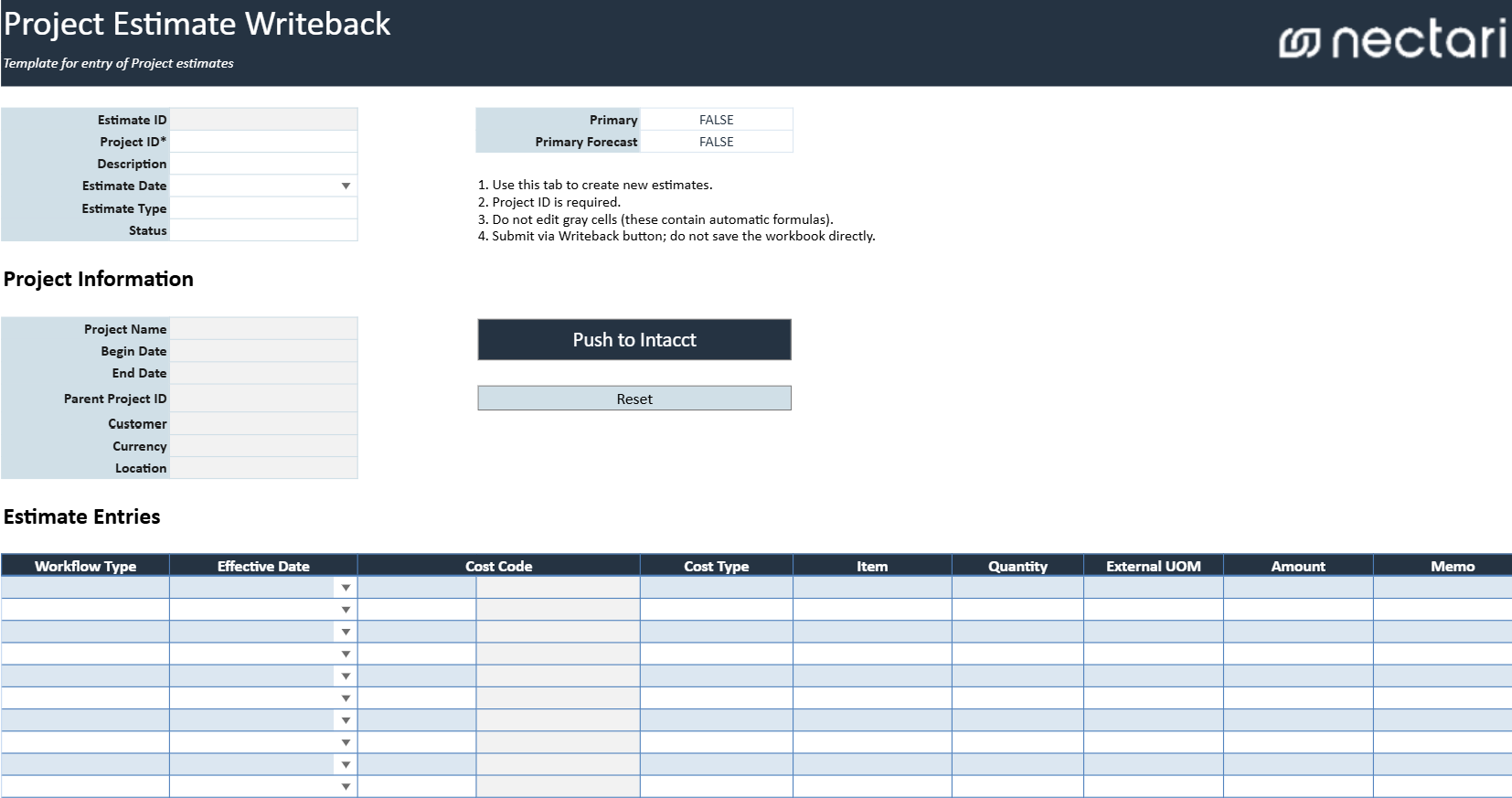
Project estimate header fields
The estimate header identifies the estimate and its project. Fields marked with an asterisk (*) are required.
| Header field | What it contains |
|---|---|
| Estimate ID | Identifier for the project estimate. |
| Project ID * | Sage Intacct project associated with the estimate. |
| Description | Description of the project estimate. |
| Estimate Date | Date associated with the estimate. |
| Estimate Type | Type or classification of the estimate. |
| Status | Status assigned to the estimate. |
| Primary | Indicates whether the estimate is the project's primary estimate. |
| Primary Forecast | Indicates whether the estimate is used as the project's primary forecast. |
Project information fields
The template fills in the project information from the selected Project ID. These fields are for reference only, so leave them as is.
| Project field | What it contains |
|---|---|
| Project Name | Name of the selected project. |
| Begin Date | Project start date. |
| End Date | Project end date. |
| Parent Project ID | Parent project associated with the selected project, when applicable. |
| Customer | Customer associated with the project. |
| Currency | Currency assigned to the project. |
| Location | Location associated with the project. |
Writeback actions
| Writeback action | What it does |
|---|---|
| Push to Intacct | Creates the new estimate or writes changes to the selected existing estimate in Sage Intacct. |
| Reset | Clears the current new-estimate entry so another estimate can be prepared. |
Estimate entries grid
The estimate entries grid contains the lines of the project estimate.
| Estimate entries column | What it contains |
|---|---|
| Workflow Type | Workflow classification associated with the estimate line. |
| Effective Date | Date from which the estimate line becomes effective. |
| Cost Code | Project cost code associated with the estimate line. |
| Cost Type | Cost type associated with the selected cost code. |
| Item | Item associated with the estimate line, when applicable. |
| Quantity | Estimated quantity for the line. |
| External UOM | External unit of measure associated with the quantity. |
| Amount | Estimated monetary amount for the line. |
| Memo | Description or additional information for the estimate line. |
Update an existing project estimate
- Select the Update Existing Project Estimate tab.
- Select the Estimate ID from its dropdown. The header, the project information, and the estimate lines load automatically.
- Update the estimate information or the line values.
- Review the estimate, then click Push to Intacct.
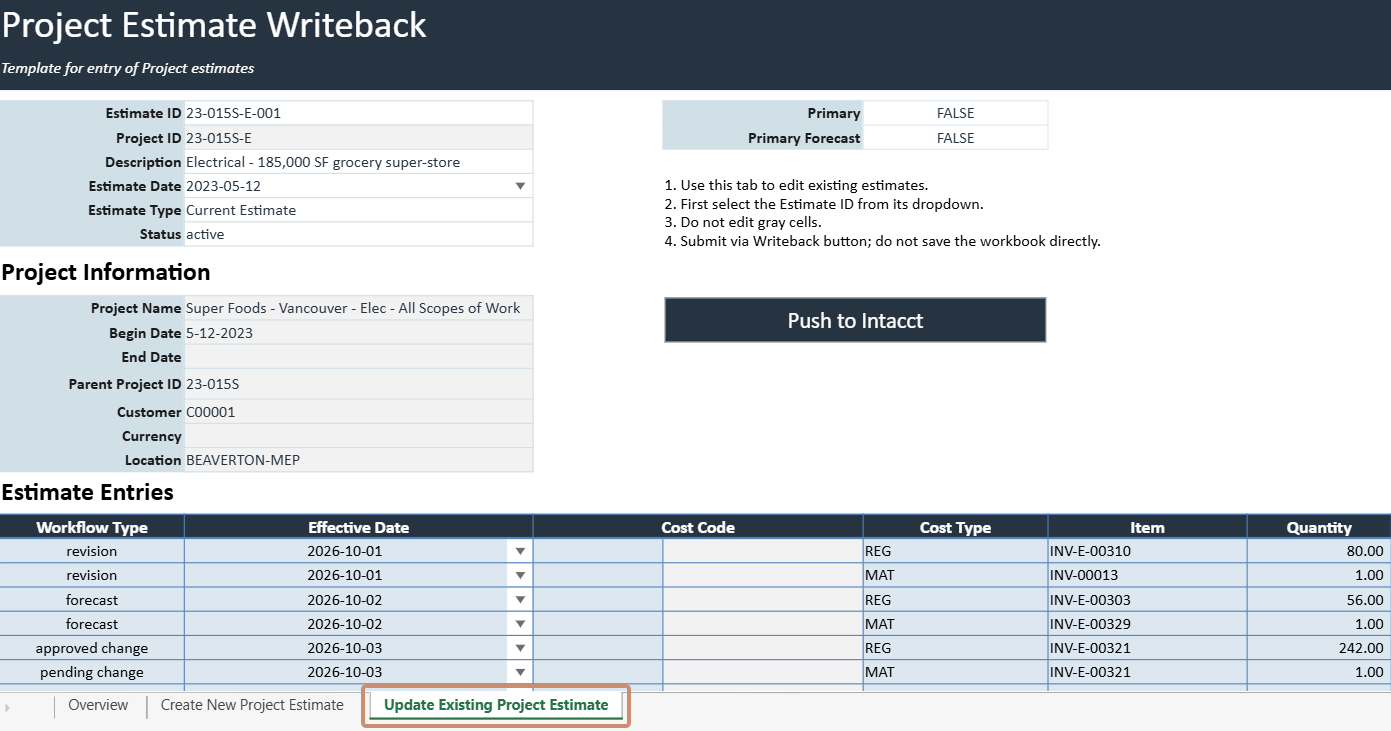
Review the project estimate before writeback
After the writeback, read the confirmation message and open the estimate in Sage Intacct to confirm the changes.
- Confirm that the correct Project ID or Estimate ID is selected.
- Review the estimate header fields.
- Verify that the project information matches the intended project.
- Go over the Cost Code, Cost Type, Quantity, Amount, and other line details.
- Make sure every required field is complete.