Annual Budget
The Annual Budget Writeback template creates general ledger budgets in Sage Intacct directly from a workbook. You can use the template to prepare annual budgets by account, location, department, and class, with prior year actuals as a starting point.
The monthly amounts come from the built in helper columns, or you can enter and adjust them manually. It uses the NECWRITEBACK formula, generated with the Writeback Wizard, to send the completed budget to Sage Intacct.
Click Initialize before you edit budgets. Initialize creates a workbook copy with static data, so a refresh keeps your changes.
Write an annual budget back to Sage Intacct
- Enter a unique Budget ID and select the Starting Reporting Period in the budget header.
- Select the actuals Book and any budget filters.
- Click Initialize.
- Fill in the monthly amounts with the budget helper columns, or enter them directly.
- Review the budget, then click Push to Intacct.
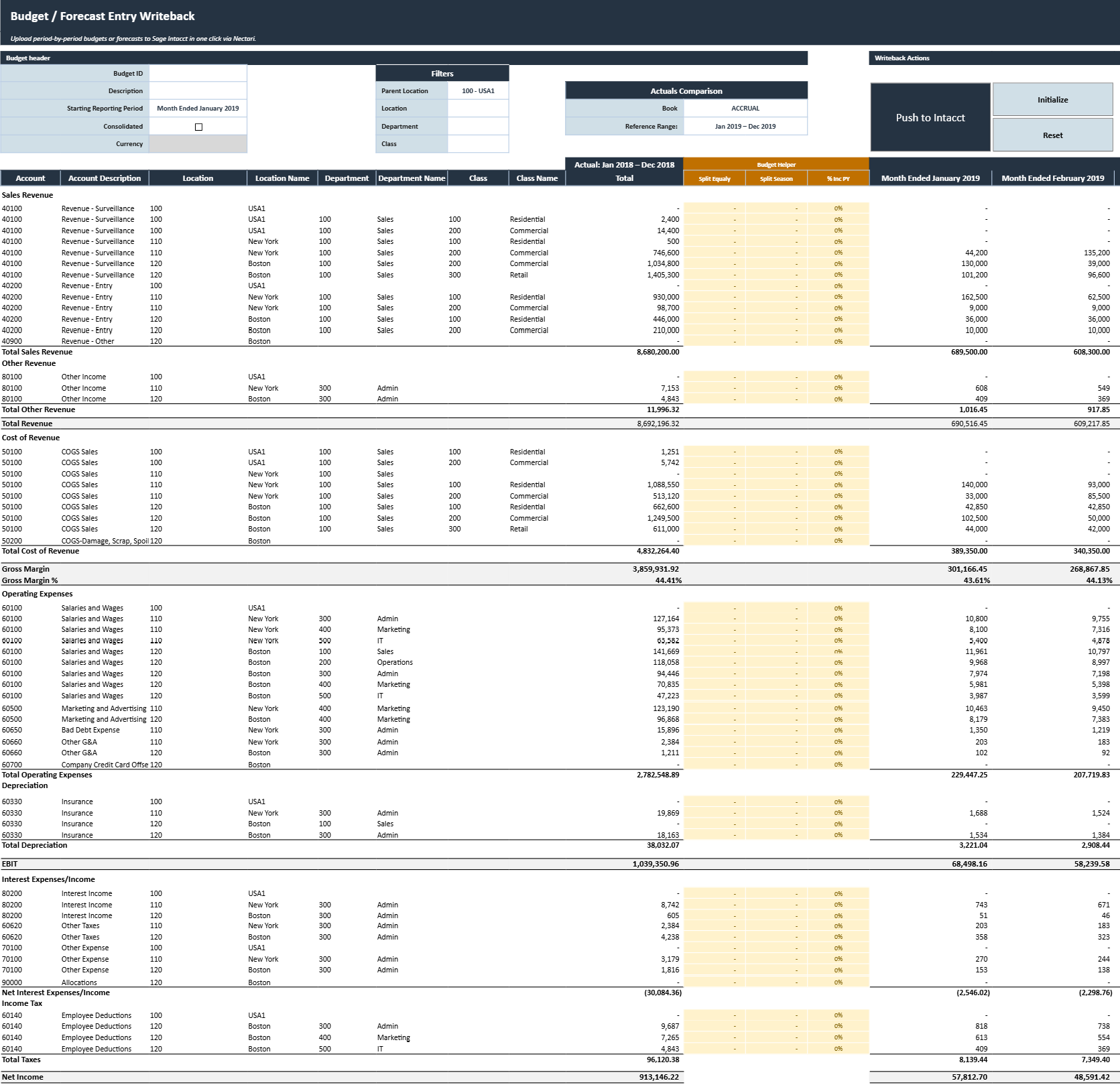
Annual budget header fields
The budget header identifies the budget to create and sets the fiscal periods the budget covers.
The template generates the monthly period headers from the Starting Reporting Period. If a generated period doesn't match the budget period you want, select the correct one from the dropdown of that period header.
| Header field | What it does |
|---|---|
| Budget ID | Unique identifier for the new budget in Sage Intacct. |
| Description | Description used to identify the purpose or scope of the budget. |
| Starting Reporting Period | First fiscal period of the budget. The following 11 periods are generated automatically. |
| Consolidated | Indicates whether the budget is a consolidated budget. |
| Currency | Currency for the budget. Required when creating a consolidated budget. |
Budget filters
The filters set which accounts and dimension combinations load into the budget grid. You can combine them to narrow the budget, for example to a single department within one location.
- Parent Location limits the budget to the locations under the selected parent location.
- Location restricts the budget to one location.
- Department narrows the budget to one department.
- Class filters the budget to one class.
For a sales budget in the Boston office, set Parent Location to USA, Location to Boston, and Department to Sales.
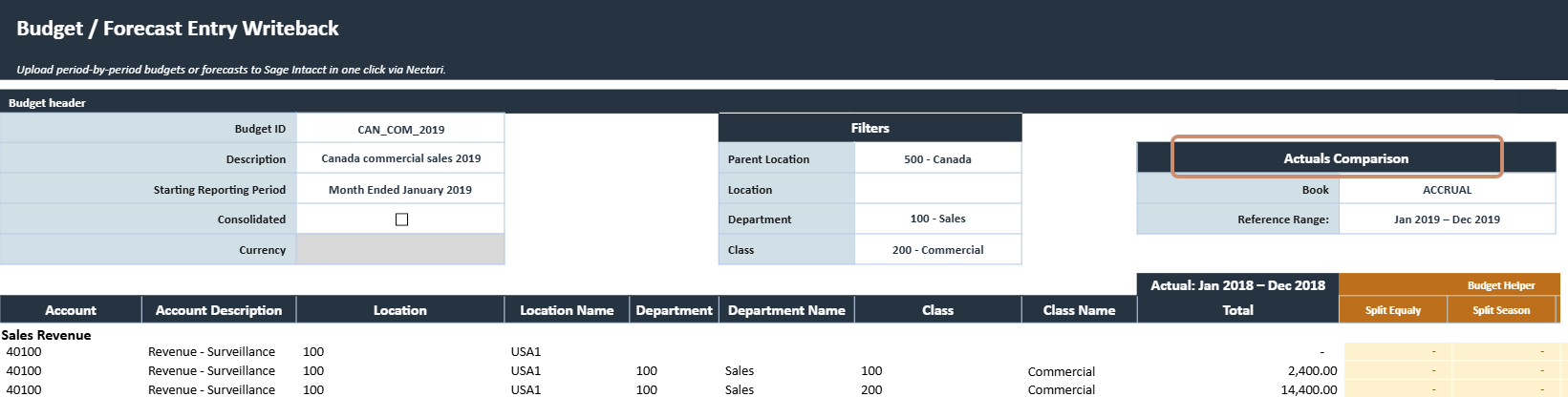
Actual comparison fields
These fields set the historical actuals displayed next to the new budget.
- Book sets the Sage Intacct book that the comparison actuals come from.
- Reference Range shows the fiscal periods of the actual comparison. The template sets the range from the Starting Reporting Period, and the range usually covers the matching 12 periods one year earlier.
Writeback actions
| Writeback action | What it does |
|---|---|
| Push to Intacct | Writes the prepared monthly budget amounts to Sage Intacct. A confirmation message indicates whether processing completed successfully. |
| Initialize | Creates a separate workbook copy with (Initialized) added to the workbook name. Data extractions are disabled and the extracted data is made static so it remains unchanged while the budget is being prepared. |
| Reset | Clears the current changes and restores the template to its last saved state. Any unsaved budget entries or edits are removed. |
Annual budget grid
The budget grid lists the selected accounts and dimensions, the actuals of the reference period, the helper columns, and the monthly budget amounts. The 12 budget periods come from the Starting Reporting Period, so they don't need to match a calendar year.
| Budget grid column | What it contains |
|---|---|
| Account | General ledger account included in the budget. |
| Account Description | Description of the general ledger account. |
| Location | Location associated with the budget line. |
| Location Name | Description of the location. |
| Department | Department associated with the budget line. |
| Department Name | Description of the department. |
| Class | Class associated with the budget line. |
| Class Name | Description of the class. |
| Actual Total | Total actual amount for the selected reference period. |
| Monthly reporting periods | Budget amount for each fiscal period. Period headers are generated automatically and can be overridden using their dropdowns when needed. |
| Total | Sum of the monthly budget amounts for the line. |
Budget helper columns
Each helper column calculates the monthly budget amounts with a different method, and you can also enter or change any monthly amount manually. Use one helper per line, the one that matches how you budget that account.
- Split Equally divides the entered annual amount evenly across the 12 budget periods.
- Split Season spreads the entered annual amount by the monthly pattern of the reference period actuals.
- % Inc PY applies the entered percentage increase or decrease to each actual of the reference period. A value of
0%copies the prior year actuals as is.
Split Season follows the reference period actuals, so a line with zero actuals can give unusable monthly amounts. Check the monthly amounts of these lines before writeback.
Review the budget before writeback
- Confirm that the Budget ID, Starting Reporting Period, and other header settings are correct.
- Verify that the filters loaded the intended accounts and dimension combinations.
- Correct any wrong monthly period header with its dropdown.
- Compare the reference period actuals with the monthly budget amounts, including any amounts you changed manually.
- Review the Total of each line and the budget totals at the bottom of the grid.
- Confirm that you clicked Initialize before you entered budget amounts.