
Setup the Extraction Panel
Whenever you create an extraction, this panel will show up for you to specify which source and destination connections should be used to perform the extraction.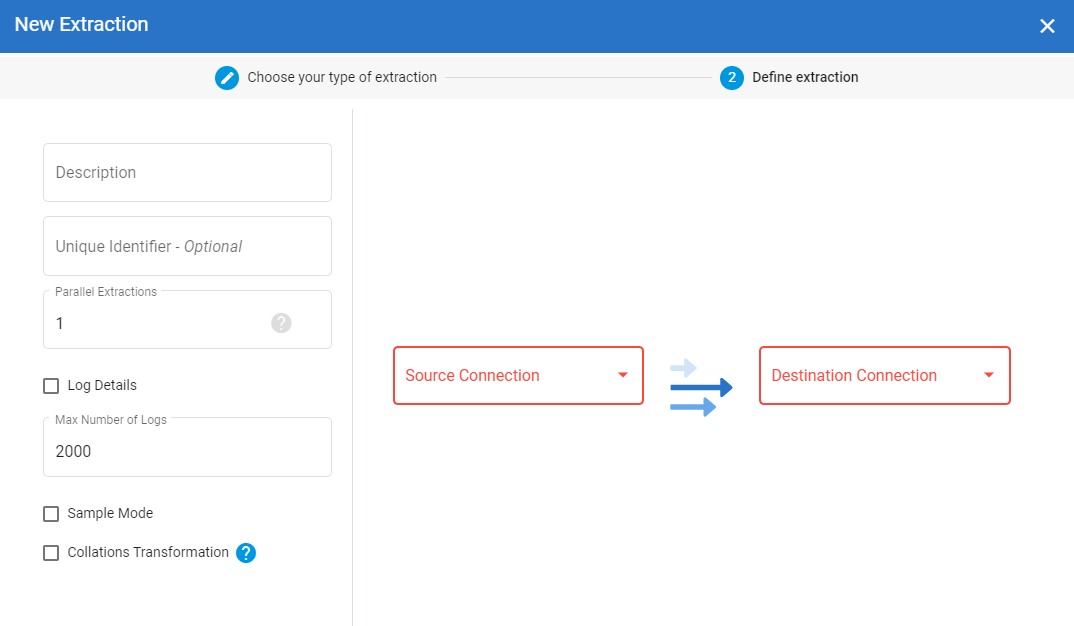
Extraction Details
- Description
- Enter a name for your extraction.
- Unique Identifier
- This is used to differentiate entries with the same name coming from multiple sources in order to keep the data integrity in the destination rows. As an example, if you have 3 sources and in each of these 3 sources you got the same invoice number, in the destination they will be kept as a distinct rows with a specific unique identifier for each sources. If for any reason you want to eliminate duplicates (ex: same customers on all the databases) you could in this case put the same unique identifier and the system will delete the duplicates and keep the definition of the last update done by the last source.
- Parallel Extractions
- Set the number of extractions you want to process at the same time (the higher the value is the fastest the process takes but the highest resources will be required as multiple extractions will be run simultaneously.)
- Active (appears when editing)
- Tick this checkbox if you want this extraction to remain active for a schedule.
- Log Details
- Tick this checkbox if you want a detailed log. Unlike "simple" log, detailed log includes each step of the process
- Sample Records
- Tick this checkbox if you want to test the settings of your extraction. If this checkbox is ticked, only 50 records by table will be synchronized.
- Collations Transformation
- Tick this checkbox if your source collation is different than the destination collation.
Source and Destination
Note
Some connections will not have a schema property (ex: mySQL, Excel, Access etc.).
The available destination connection in the drop-down list will be affected by the type of extraction you chose. If you have selected Export, only CSV connection type will be available for instance.
- Source Connection
- Select a source connection in the drop-down list.
- Source Schema
- Select the schema associated to the source database.
- Destination Connection
- Select a destination connection in the drop-down list.
- Destination Schema
- Select the schema associated to the destination database.
- Click on Create.
Note
You will automatically switch to the Tables window.