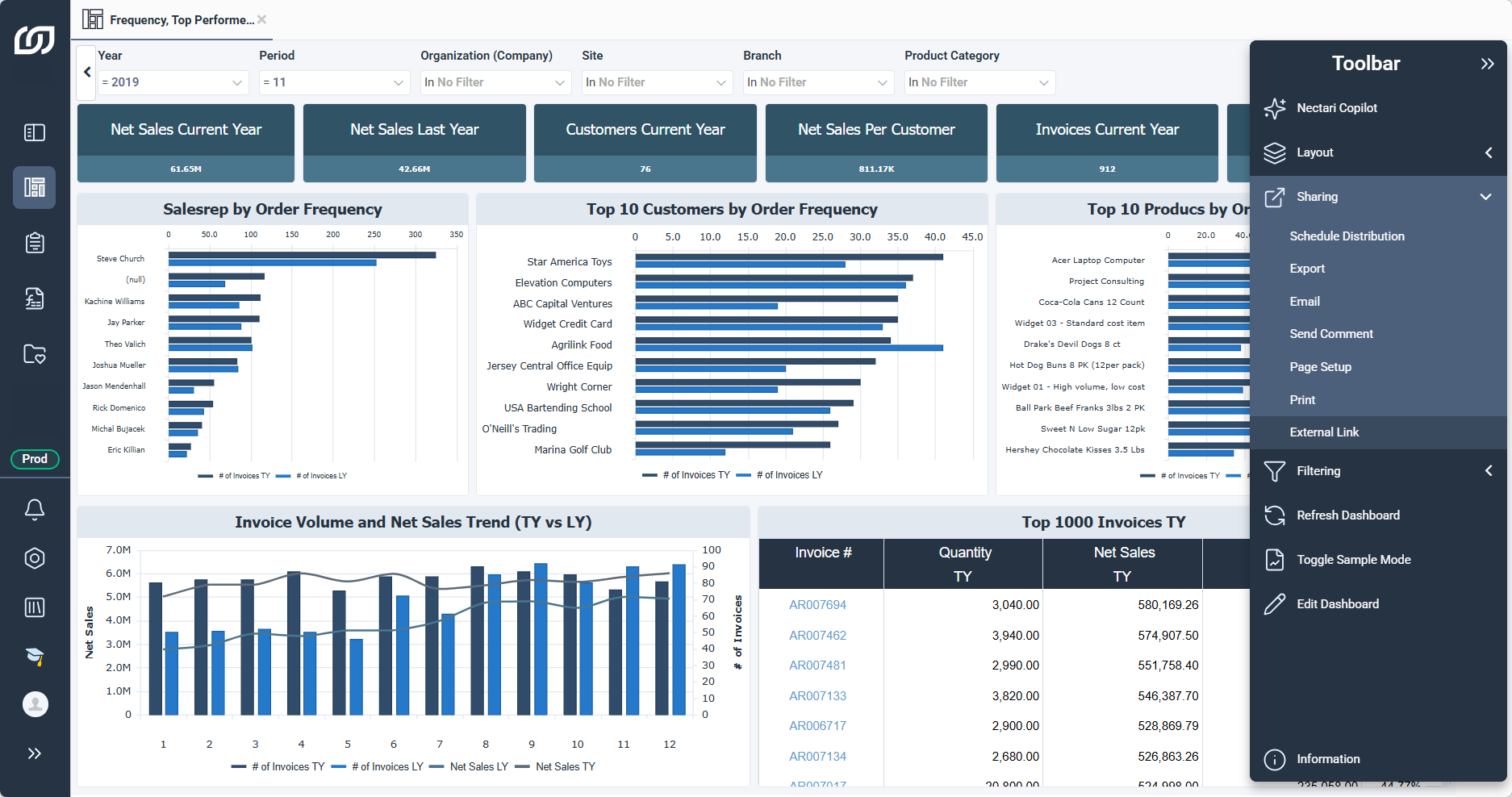
You can display Sage Enterprise Intelligence inside Acumatica and reach the administration functions, dashboards, reports, and workbooks without leaving the ERP. Copy the Sage Enterprise Intelligence URL, then display it in a dashboard.Edit the web.config file
- On the Sage Enterprise Intelligence server, open
web.config in C:\Program Files\Sage Enterprise Intelligence\Sage Enterprise Intelligence Server\WebServer. - Replace the
<sessionState> and <httpCookies> elements with these lines:<sessionState cookieSameSite="None"/>
<httpCookies httpOnlyCookies="true" requireSSL="true" sameSite="None"/>
- Save the file, then restart Sage Enterprise Intelligence if needed.
Copy the main link to embed the full menu, or the link of a view or dashboard to embed only that one.
- Log in to Sage Enterprise Intelligence.
- Copy the full URL from the browser address bar.
Copy a visualization URL
- In the navigation panel, select Data Models and Views or Dashboards.
- Expand the folders and open the view or dashboard.
- In the toolbar on the right, expand Sharing and click External Link.
- Copy the full URL from the browser address bar.
- Log in to Acumatica.
- In the sidebar, select Customization, then click Dashboards.
- Click + and enter a name for the dashboard.
- Next to Owner Role, click the magnifying glass icon.
- Under Guest Role, select Administrator, then click Select.
- Click Save.
- Click Publish to the UI.
- Next to Workspace, click the magnifying glass icon.
- Select a workspace, such as
Finance or Inventory, then click Select. - Click Publish.
- In the sidebar, select the workspace you chose, such as Finance or Inventory.
- Select your dashboard, then click Design.
- Click Add a new widget, select Embedded Page, then click Next.
- In Source, paste the main URL or the visualization URL.
- In Caption, enter a caption, such as
Sage Enterprise Intelligence Balance Sheet. - Click Finish.
- In the sidebar, click the three dots, then click Edit Menu.
- Click Add Workspace.
- In Icon, select dashboard, then in Area, select where to add the workspace.
- In Title, enter
Sage Enterprise Intelligence, then click OK. - Click Add Menu Item, then search for your dashboard and select it.
- Click Add & Close, then Exit Menu Editing.
Pin Sage Enterprise Intelligence to the sidebar
- In the sidebar, select More Items.
- Hover over the Sage Enterprise Intelligence menu item, then click the pin icon.