Import Excel Files as Workbooks
Existing Excel files can be imported into SEI as workbooks. Compatible Excel Add-in features are automatically converted to their workbook equivalents, keeping existing report layouts intact instead of rebuilding them from scratch.
Some Excel Add-in features are not supported after the import, including in Sage Intelligence reports: Reporting Tree and Prompts.
Import an Excel file
- In the navigation panel, select Workbooks.
- Right-click and select Import Workbook.
- Drag and drop the Excel file. Supported formats are
.csv,.xlsx,.xlsm, and.xltx. - (Optional) Enter a password if the file is protected.
- Click Import.
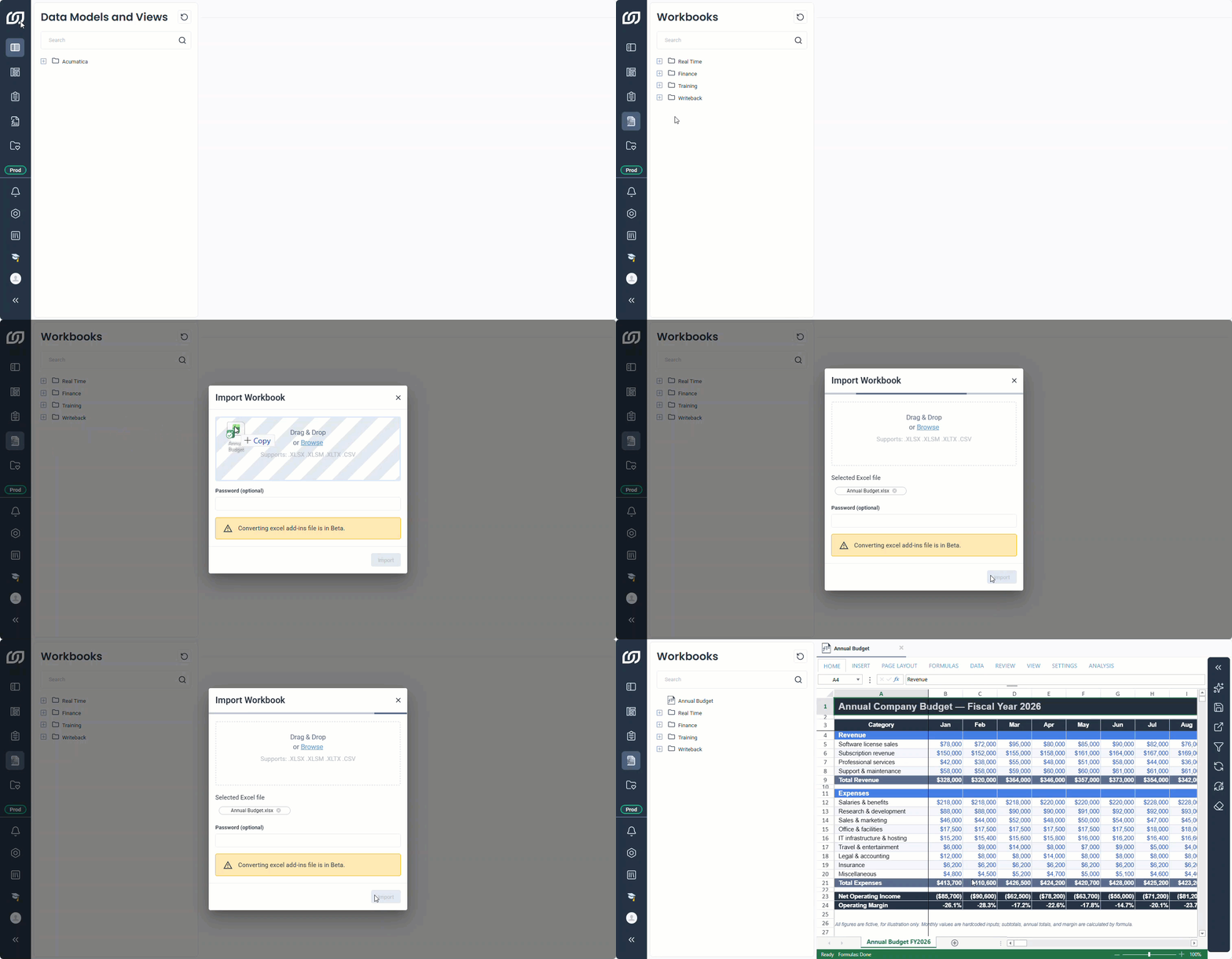
If any cells could not be converted, the workbook includes a sheet named Errors. This sheet lists each affected cell and the reason the conversion failed.
Convert Sage Intelligence finance reports to workbooks
You can import a Sage Intelligence (SI) report created in Excel as a SEI workbook. SEI converts the SI finance formulas to NECFORMULA formulas and creates a selection page with the fields of the report. You can edit these fields after the import.
Before you convert a report, make sure the template is installed and up to date for your Sage product: Sage 100 North America, Sage 200 Evolution, or Sage 300. Then import the report in a supported file format.
The conversion covers the report only. It does not include SI data tables, reporting tree, or formulas outside the supported finance formulas.
Sage Intelligence (SI) adds or subtracts GL accounts directly in a cell, for example 20-2026-072-00-D-GDS + 20-2026-096-00-D-GDS. SEI converts each account to a NECFORMULA and keeps the calculation.
Example
In SI, a cell that adds the balances of two GL accounts contains this formula:
20-2026-072-00-D-GDS + 20-2026-096-00-D-GDS
When that formula is imported into a workbook, each account becomes its own formula. The second NECFORMULA call repeats every filter from the first one, and only the account filter, GLAMF_ACCTFMTTD, changes between the two. The calculation converts to:
=NECFORMULA(
  "CURRENT",
  "450002319",
  "GLAFS_ACTUAL_SI_OPENBAL_M",
  "sum",
  NECFILTERGROUP("AND",
    NECFILTER("CSCOM_AUDTORG","equal",NECSELECTIONPAGEVALUE("##Company")),
    NECFILTER("SERVER_FLD0000001","equal",NECSELECTIONPAGEVALUE("##Fiscal_Period_fmt")),
    NECFILTER("GLAFS_ACTUAL_SI_FSCSCURN","equal","CAN"),
    NECFILTER("GLAFS_ACTUAL_SI_CURNTYPE","equal","S"),
    NECFILTER("GLAMF_ACCTFMTTD","equal","20-2026-072-00-D-GDS")
  )
)
+NECFORMULA(same arguments, with GLAMF_ACCTFMTTD equal to "20-2026-096-00-D-GDS")
Formulas in SEI always start with =NECFORMULA. Unlike SI, these formulas don't require a space around + or -.